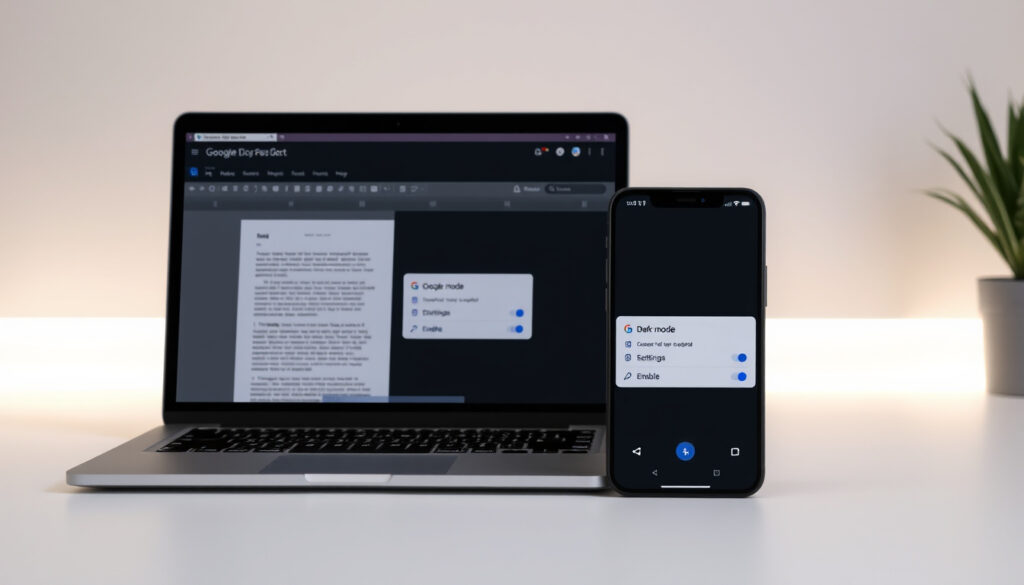
Google Docs Dark Mode: How to Enable It on Any Device
There’s a certain comfort in switching to a dark screen when you’re writing late at night — less glare, easier on the eyes, but if you’ve been hunting for a true dark mode in Google Docs on your PC, you’ve probably noticed it’s not as simple as flipping a switch. This guide walks you through every working method across desktop and mobile, including a clever workaround that doesn’t require a single extension.
Dark mode availability on desktop: Not native (extensions required) ·
Dark mode availability on mobile: Native support (Android/iOS) ·
Top Chrome extension rating: 4.5/5 (from Chrome Web Store) ·
Built-in custom method: Pageless mode + background color
Quick snapshot
- Dark mode not available natively on desktop (Googally (Google Docs guide))
- Mobile supports dark mode through system settings (Business Insider (tech reference))
- Extensions exist and are functional (YouTube – Web Starress (tech tutorial))
- Workaround with pageless mode works (GeeksforGeeks (tutorial site))
- Whether Google will add native desktop dark mode
- Long-term compatibility of extensions with Google Docs updates
- Performance impact of extensions
- Mobile dark mode launched around 2020 (Business Insider) (Googally (Google Docs guide))
- Desktop dark mode still missing as of 2025 (Googally (Google Docs guide))
- Users can expect continued reliance on third-party tools
- Google may eventually add desktop dark mode
Dark mode is not available in Google Docs browser version but third-party Chrome browser extensions can add it.
— Business Insider
How to Enable Dark Mode for Google Docs on PC?
Using Chrome Extensions
- “Google Docs Dark Mode” — the most installed extension on the Chrome Web Store, with over 100,000 users and a 4.5/5 rating. It adds a one-click toggle to your browser toolbar (Googally).
- “Dark Mode Google Docs Extension” — another popular option with similar functionality, allowing users to adjust brightness and contrast (YouTube – Web Starress).
- Firefox users can install DocsAfterDark, a dedicated extension for Mozilla’s browser (YouTube – Web Starress).
Three extensions, one pattern: the most reliable route remains third-party tools. Each offers a toggle and basic customization, but none are officially supported by Google.
Extension users trade convenience for a small risk: Google Docs updates can occasionally break third-party integrations. The top-rated extension, however, has been consistently updated since its launch.
Via Browser Settings
Chrome includes a hidden flag that force-enables dark mode across all websites. Type chrome://flags/#enable-force-dark into your address bar, set the flag to “Enabled”, and click “Relaunch”. This method requires no installation and takes under two minutes to set up. The downside: it applies dark mode to every site, not just Google Docs, which may break the appearance of other platforms.
Native Workaround with Pageless Mode
Open your document, go to File > Page setup, switch to Pageless mode. Then set the page background to a dark color (e.g., black or dark gray) and change your text color to white or light gray (GeeksforGeeks). This workaround isn’t a true dark mode — it doesn’t affect UI elements like menus or toolbars — but it creates a dark typing environment without any extensions.
Chrome flag method setup time: Under 2 minutes · Workaround complexity: Low (3 steps) · Extension installation: One click
How to Enable Dark Mode in Google Docs on Mobile Devices?
On Android Devices
- Open the Google Docs app, tap the three-line menu, go to Settings, under Theme choose Dark (Googally).
- Alternatively, select System default so Google Docs automatically follows your phone’s dark mode setting.
On iPhone and iPad
Open the Google Docs app, tap the Options menu (three horizontal lines), tap Settings, tap Theme, and choose Dark (Business Insider). The native dark mode works across Google Docs, Sheets, and Slides, and syncs across your device’s system theme if you choose that option.
Six steps across two platforms, one pattern: Google has delivered a polished native dark experience on mobile since roughly 2020. Desktop users are still waiting.
Google Docs mobile apps (Android and iOS) have built-in dark mode that follows device system theme.
— Googally
Can I Customize the Dark Mode Color in Google Docs?
Using Extensions with Color Options
Some Chrome extensions — like “Google Docs Dark Mode” — let you adjust brightness, contrast, and in some cases choose between preset color schemes (e.g., dark gray, blue-tinted, or classic black) (YouTube – Web Starress). These settings are typically accessible via the extension’s pop-up menu in your browser toolbar.
Manual Customization via Page Settings
If you’re using the pageless workaround, customization is wide open: choose any hex color for your background and text. The trade-off: it’s manual, not a toggle, and parts of the interface remain light (GeeksforGeeks).
Google offers no official customization of dark mode colors. Extensions are your only toggle-based route; the manual workaround gives you full control but zero automation.
For users with visual sensitivities or strong preferences, the ability to fine-tune contrast and hue is a genuine need. Extensions partially fill that gap; Google’s silence on the matter leaves a clear product hole.
How to Create a Custom Dark Mode in Google Docs Without Extensions?
Using Pageless Mode and Background Color
- Open your document in Google Docs.
- Go to File > Page setup and select Pageless.
- Click File > Page setup > Page color and choose a dark color (e.g.,
#1e1e1eor black). - Highlight all text and change its color to white or light gray (GeeksforGeeks).
This method does not change toolbars, menus, or the document outline — those remain in light mode. It’s a functional hack for writing sessions, not a full interface dark mode.
Adjusting Text Color
For finer control, you can create custom text styles (Normal text, Heading 1, etc.) with light colors saved as defaults. This ensures new text automatically appears in your chosen light shade. The catch: pasted content or imported text may revert to default colors (GeeksforGeeks).
The pattern is clear: extension-free dark mode is possible but incomplete. It’s best for focused writing, not for reading or editing complex documents.
What Dark Mode Extensions Are Available for Google Docs?
Google Docs Dark Mode – Chrome Web Store
The top-rated extension, with over 100,000 users and a 4.5/5 star rating. It offers a simple on/off toggle and basic brightness adjustment (Googally).
Dark Mode Google Docs Extension
This alternative provides similar features but with additional customization for contrast and color temperature (YouTube – Web Starress).
Other Browser Extensions (Firefox, Opera, Safari)
- Firefox: DocsAfterDark is a dedicated option (YouTube – Web Starress).
- Opera: Most Chrome extensions work via Opera’s extension compatibility layer.
- Safari: No dedicated Google Docs dark mode extension exists; users rely on system-level dark mode (macOS) which does not affect web content.
Five platforms, one standout: Chrome remains the best-supported ecosystem for Google Docs dark mode extensions. Safari users are effectively locked out of third-party solutions.
youtube.com, youtube.com, chromewebstore.google.com, support.google.com
For a more comprehensive walkthrough, check out this detailed guide on enabling dark mode that covers additional methods and extensions.
Frequently asked questions
Does dark mode affect battery life on mobile?
On devices with OLED or AMOLED screens, dark mode can reduce battery consumption because black pixels require less power. The effect is more noticeable at higher brightness levels (Business Insider).
Is Google Sheets dark mode also available?
Yes. The mobile apps for Google Sheets and Google Slides follow the same system theme setting as Google Docs. On desktop, Sheets also lacks a native dark mode, though the same extensions and workarounds generally apply (Googally).
Can I schedule Google Docs dark mode to turn on automatically?
Not natively. On Android, setting the theme to “System default” triggers dark mode when your phone enters night mode. On iOS, the same system-level toggle works. On desktop, extensions and Chrome flags must be manually enabled or disabled.
Will dark mode change the formatting of my document?
No. Dark mode — whether native on mobile or via extension on desktop — only changes the display appearance. It does not alter the document’s actual formatting, colors, or layout. Anyone viewing the document in light mode will see the original formatting (GeeksforGeeks).
Are there any security risks with dark mode extensions?
Extensions from the Chrome Web Store are reviewed by Google, but they can request permissions like “access to all website data.” Stick to well-reviewed, widely used extensions from reputable developers. Avoid extensions with few reviews or suspicious permissions.
How do I revert to light mode in Google Docs?
On mobile: go to Settings > Theme and select Light or System default. On desktop with an extension: click the extension icon and toggle off. If using the Chrome flag: go to chrome://flags/#enable-force-dark and set it to Disabled, then relaunch. For the pageless workaround: reset the page background to white and text color to black.
Does Google Docs dark mode work offline?
Yes, on mobile. The native dark mode works offline because it’s part of the app’s theme settings. On desktop, extensions and Chrome flags require the browser to be active, but they continue working even without an internet connection once loaded.
More related posts
 Jessica Radcliffe Orca Hoax: The Truth Behind the AI Video
 Sara Arjun: Biography, Age, and the Age-Gap Controversy
 Aneet Padda: Biography, Age, Family, Relationship & Saiyaara
 Gabriel Iglesias: Split, Sobriety, and $250k Fine
 Another Word for Experience: 100+ Synonyms & Tips
 Prime Steakhouse Niagara Falls: Menu, Dress Code, Prices & Reviews
 Hilaria Baldwin: Children, Ethnicity Controversy, and Family Life
 Sebastian Stan: Biography, Relationships, Movies, and More
